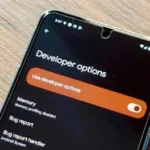

“Developer Options” in Android phones is an advanced window to improve the user experience. It is not limited to app developers testing their software, but also ordinary users seeking to make subtle adjustments to improve device performance and functionality.
The “Developer Options” mode comes hidden within the system settings, giving users access to a set of advanced settings that Google originally developed for developers.
Although these options are designed for developers, many of them can be useful to ordinary users when used correctly, allowing to improve the daily user experience, speed up the device, or modify some of the default behaviors of applications and the system.
Android phones hide the “Developer Options” menu within the system settings, and it does not appear until you enable it by repeatedly clicking on the “Build Number” in the “About Phone” section within the settings. This method allows access to advanced settings that are usually not visible to the average user.
After activating this mode, a wide range of advanced settings opens before the user, including improving performance, modifying graphics behavior, and controlling the behavior of the system and applications.
Although these options are originally focused on supporting developers in experimenting and testing applications, there are several settings that the average user can benefit from as well, including:
Graphics acceleration: Users can reduce or stop system animations, making the phone interface look faster and more responsive.
Improved Bluetooth behavior: Helps deal with Bluetooth devices whose volume levels may not be compatible well.
Real screen performance monitoring: Settings to display the screen refresh rate moment by moment, useful for anyone who wants to evaluate the performance of his device.
Keep screen on: This feature helps keep the screen on during long charging operations or when monitoring certain content. Although this feature may seem technical, it provides practical improvements in daily use if used carefully according to the user’s needs.
Activate these options:
The “Developer Options” menu does not appear by default in Android settings, but it can be activated by following these simple steps. First, open Settings on your phone and go to the “About Phone” section, search for “Build Number” and tap on it several times in a row until you see the “You are now a developer” notification appear on the screen.
Now go back to the main settings menu, and you will find the “Developer Options” section appears in the list.
Risks and warnings:
Although activating the “Developer Options” menu does not harm the device in itself, changing some settings without knowing what they are doing may lead to unexpected behavior in the system, such as battery drain or slow performance, so users are advised to slow down and research the meaning of each setting before activating it. (Erm News)